
Guides
Creating your first invoice with MyHissab in five minutes
Step by step, from creating your account to the PDF sent to your client, setting up your activity, adding a client, entering a service, checking the invoice, and marking it as paid.
By the MyHissab team 4 min read
This tutorial follows the journey of an auto-entrepreneur opening a MyHissab account and sending their first invoice. Allow five minutes, with your auto-entrepreneur card at hand.
1. Create the account
From the home page, choose "Start for free." The Free plan requires no bank card. Sign-up has three steps, and your tax identity is asked for right away so that you can issue your first invoice as soon as you arrive:
- Account: your email address and a password; your first and last name, as they appear on your card, are recommended;
- Activity: your auto-entrepreneur card number, your field of activity in the ANAE nomenclature and your NIF (15 digits, or 20 with the establishment code) are required;
- Documents: your trade name, phone number, address and logo, all optional, then acceptance of the terms.
A confirmation email is sent to you: click its link to activate the account. You then land on your dashboard, and you can open "New invoice" without any detour through the profile: there is nothing else to fill in before issuing.
The field determines the cap tracked on your dashboard (5,000,000 DZD for services, 10,000,000 DZD for micro-import). You can change these details, and fill in your trade name, logo, address, and phone number, from your profile: they will appear on your documents.
2. Add your first client
Open "Clients," then "New client." Name and address are enough. The RC, NIF, NIS, and AI fields are optional: fill them in if the client has given them to you. An email address will allow payment reminders to be sent from the app.
3. Create the invoice
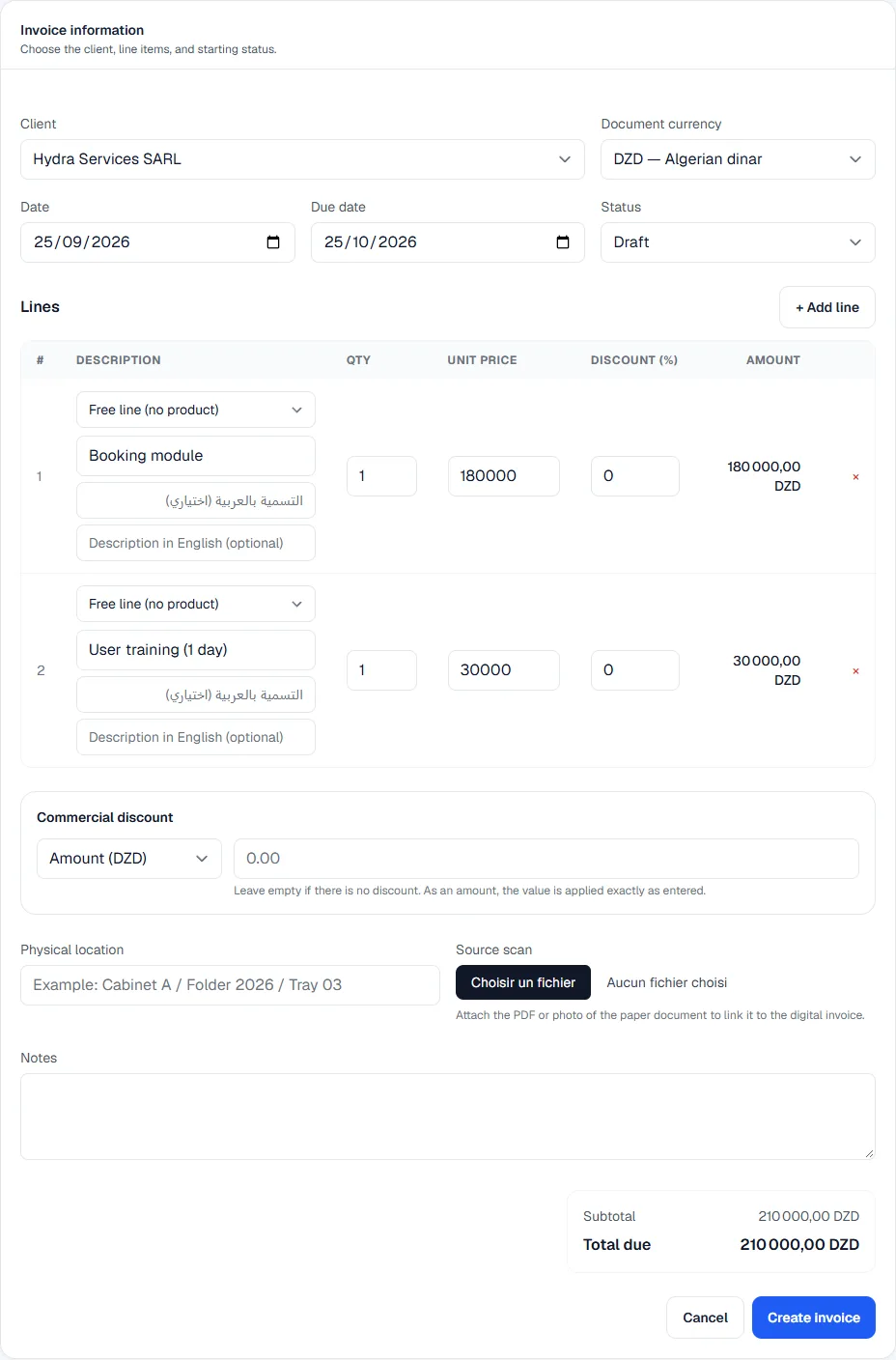
Open "Invoices," then "New invoice," and select the client. Add one line per service:
| Field | Example |
|---|---|
| Description | 5-page showcase website |
| Quantity | 1 |
| Unit price | 90,000.00 |
MyHissab calculates the line amount and the total. The invoice number is assigned automatically in your series (INV-2026-0001 for the first one of the year), today's date is suggested, and the statement "VAT not applicable — auto-entrepreneur regime (law no. 22-23)" is added automatically: there is no VAT to enter.
If you're starting from an accepted quote, open it and choose "Convert to invoice": the line items are carried over without re-entry.
4. Check before sending
Before validating, review:
- the client's name and address;
- each description, quantity, and price;
- the total and the amount in words, generated automatically in French, Arabic or English depending on the PDF's language;
- the due date and the expected payment method.
The invoice page summarises the client, lines and totals; open the PDF to see the document as the client will receive it. A draft invoice remains editable; once marked "sent," it is locked to guarantee continuous numbering.
5. Download or send the PDF
Choose "Download PDF" (or "PDF عربي," "PDF EN") and send the file through your usual channel. The PDF carries your auto-entrepreneur identity, card number, legal statement, and amount in words. It is available in French, Arabic (right-to-left layout), or English.
6. Record the payment
When the client pays, open the invoice and choose "Record a payment": date, amount, payment method. If the payment is in cash, stamp duty is calculated and added to the total collected. The invoice moves to "paid" status, and the amount feeds into your collected revenue, the estimated IFU at 0.5%, and your annual cap gauge.
What's next
- A quote before each job avoids discussions at delivery; it converts to an invoice in one click.
- Expenses should be logged as you go to know your real profit (they don't reduce the IFU, but they matter to you).
- A full backup of your data is requested from Settings → Backups; the ZIP archive is prepared in the background, then offered for download.
If anything is unclear, the Contact page puts you in touch with the team: we reply by email.
This information is provided for practical purposes and reflects the texts in force on the update date. It does not replace advice from the ANAE, the tax administration or a professional. Always check the latest version of the official texts.
From theory to your first invoice.
MyHissab applies these rules automatically: legal mention, amount in words, revenue caps. Free, no credit card.