
Guides
Giving your clients a client portal with MyHissab: link, QR code and access
What the portal brings, the two ways to bring a client in (sign-up link or QR code, activation from the client record), what the client sees and how to revoke access.
By the MyHissab team 9 min read
An auto-entrepreneur who invoices the same clients every month spends a surprising amount of time resending PDFs, answering "did you get it?" and digging up the attachment from an old e-mail. The client portal settles all three. By the end of this guide, you will know how to open that portal to a client through a link or a QR code, or from their record, and you will know precisely what they find there and what they do not.
What the client portal is for
The client portal is a login page separate from your account. The client signs in with their e-mail (or the login you gave them) and a password. Once inside, they have:
- a home page that counts their invoices, those awaiting payment, those paid, and lists the latest ones;
- the My invoices page, with the date, status and total of each document;
- the detail of an invoice and its PDF to download, without asking you for anything;
- on each invoice, a thread of messages: a note, or an acknowledgement with an attachment (PDF, JPG, PNG or WEBP, 5 MB maximum);
- support tickets, reachable at
/portal/supportor from the notification e-mails (there is no link in the portal menu, which offers Home, Invoices, Password): they open one, follow the replies, attach files; - the option to change their password.
Every message they send lands in your application, on the invoice concerned, with a button to reply. Nothing goes through a mailbox you will have to search later.
Example: Amine Kaci, a developer in Algiers, invoices Hydra Services SARL three times a quarter. Since Hydra Services' accountant got her access, she downloads the PDFs herself at month-end closing and drops the transfer order as an attachment on the invoice. All Amine has left to do is record the payment.
Route 1: the sign-up link or QR code
This is the simplest route for a new client: they enter their own details, including their tax identifiers, and go straight into their portal.
On your side
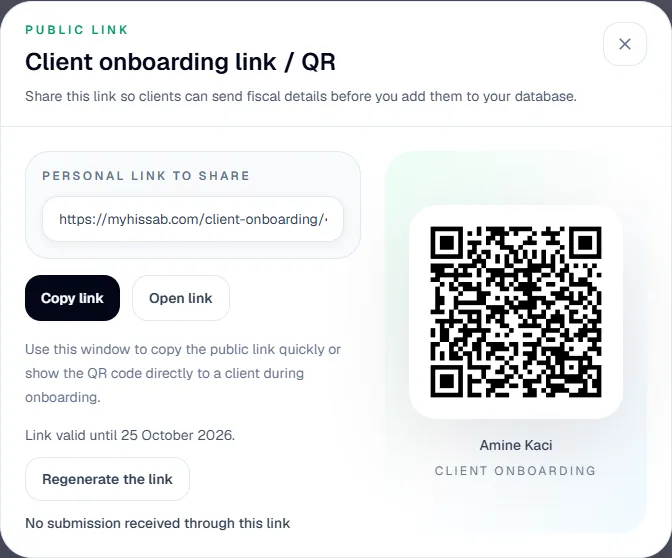
- Open the Client sign-up menu. There you find your personal link, its QR code, the date until which it is valid, the Regenerate link button and the number of submissions received.
- Copy the link and send it to the client (e-mail, messaging), or show them the QR code in person: they scan it with their phone.
- The client follows the four steps described below. Two minutes are enough, and they can go back at any step.
- As soon as they submit, their record appears in Clients with the details entered, their access is active: they go straight into their portal and you can send them a quote or an invoice.
What the client fills in
| Step | What the client enters | Worth knowing |
|---|---|---|
| Invitation | Nothing: a screen "[your name] invites you" presents the process | They see the name under which you invoice |
| Company | Company name or trade name, contact, phone, address | Only the name is required: it is what will appear on your documents |
| Tax details | RC, NIF, NIS, AI | All optional; formats checked (NIF with 15 or 20 digits, AI with 11 digits, RC of the form 16/00-1011664B17); a private individual skips the step |
| Account | E-mail, password entered twice (12 characters minimum and not found in known data breaches), consent, security check | The e-mail becomes their login and must be unique among client accounts |
Once the account is created, the client is signed in and lands in their portal, with a welcome message in your name.
The link is valid for 30 days. After that, or if you regenerate it, the old link stops working immediately and the new one starts a fresh 30 days. One link serves all your clients: it is not a link per person; each visitor creates their own record.
Route 2: activating access from the client record
This route suits clients already in your database, for example those brought in by CSV import or your long-standing clients.
- Open Clients, then the client's record, then Edit.
- Check that the record contains an e-mail address: without it, sending the credentials will be impossible.
- Tick Enable portal.
- Enter a client login: letters, digits, dot, hyphen or underscore, no spaces or accents, 60 characters maximum, unique across the platform; it is stored in lowercase. Choose something the client will remember (for example
hydra-services). - Enter a password of at least 8 characters and its confirmation, then save.
- Once saved, open the client's record: the Client portal access block shows the status (active), the login and the portal link. Click Send credentials by e-mail: a new password is generated, sent to the client with their login and the sign-in link, and displayed only once on screen so you can also pass it on by phone if you wish. Write it down before leaving the page.
The client can then sign in with their login or with the e-mail on their record: both work. The e-mail they receive advises them to change their password after the first sign-in.
What the client sees, and what they do not
| The client can | The client cannot |
|---|---|
| View the list of their invoices, with their status | See another client's documents |
| Open the detail of an invoice: lines, total, your details, theirs | See your quotes, your expenses, your dashboard or your inventory |
| Download the PDF of each invoice | Edit an invoice, a line or an amount |
| Send a message or an acknowledgement with an attachment on an invoice | Record a payment or mark an invoice as paid |
| Open a support ticket and follow the exchanges | See the supporting scan or the proof of payment you attach privately |
| Change their password | Recover a forgotten password on their own: you are the one who generates a new one |
Your account remains the only place where documents are created, edited, cancelled or paid. The client portal is a window onto their own documents, not a second workstation.
Revoking or suspending access
Open the client's record, choose Edit, untick Enable portal and save. From then on:
- the client can no longer sign in; if they were signed in, they are signed out at their next action and sent back to the login page;
- their password is erased; to reopen access later, tick the box again, enter a password (required, 8 characters minimum) and save; you can then use Send credentials by e-mail to generate a new one;
- their invoices, messages and tickets stay in your account: you lose nothing.
Three situations justify this step: the end of a business relationship, a change of contact person at the client (in which case it is simpler to generate a new password, which makes the old one unusable), or the suspicion that a third party is using the access.
What it changes for you
Take four regular clients with three invoices a month: twelve PDFs sent, then sent again when an accounting department asks for them at closing. With the client portal, each one helps themselves, including for a January invoice requested in June.
Messages are attached to the invoice. When Hydra Services writes "deposit of 30,000.00 DZD transferred on 12 October" on invoice FAC-2026-0031 for 90,000.00 DZD, with the transfer order attached, the message is right where you need it when you record the payment. And if the 60,000.00 DZD balance is slow to arrive, the reminder goes out from the same invoice (see Chasing an unpaid invoice).
Tax identifiers are entered by the client, with a format check at entry: a NIF of 15 or 20 digits, an AI of 11 digits. You retype less, you make fewer mistakes; to understand what these numbers stand for, see The auto-entrepreneur's NIF.
Finally, the client portal is separate from your account: the client never has your credentials. Protect yours with two-factor authentication, described in Securing your MyHissab account.
Common mistakes
- Expired link. The client lands on the page "This sign-up link is no longer valid". Regenerate the link from Client sign-up and send it again. If you had printed the QR code on a card or a display stand, it becomes unusable after regeneration: reprint it.
- E-mail already in use. The e-mail serves as the login and must be unique. If the client already has a client account with that address, they can use another one; otherwise, create the access from their record with a login distinct from the e-mail.
- "Send credentials" button missing. The record has no e-mail address, or the portal is not enabled, or the login is empty. Complete the record, save, come back.
- Generated password not written down. It is displayed only once. No harm done: click the button again, another password is generated and sent; the old one no longer works.
- Sign-in refused even though the password is correct. Check on the record that the client is active and that the Enable portal box is ticked.
- Mixing up the two routes. A client who created their account through the link does not need the portal enabled from their record: it is already done, and their login is their e-mail. Route 2 is only for records created by hand.
Frequently asked questions
My client has forgotten their password: what should I do? There is no "forgotten password" on the client side. Open their record and click Send credentials by e-mail: a new password is generated and sent, and the old one stops working. Advise them to change it at their first sign-in, from their portal.
Can a private individual have a client portal? Yes. Through the sign-up link, they enter their name, skip the Tax details step (all fields there are optional) and choose an e-mail and a password; their access is active as soon as they submit. From the record, the procedure is the same as for a company: name and address are enough, just as they are for creating their first invoice.
Can the same link be used by several clients? Yes: it is your business's link, not a link per client. Everyone who follows it creates their own record, and the submissions counter tells you how many have used it. If the link has circulated more widely than intended, regenerate it: the old one becomes unusable at once, without affecting the records already created.
This information is provided for practical purposes and reflects the texts in force on the update date. It does not replace advice from the ANAE, the tax administration or a professional. Always check the latest version of the official texts.
From theory to your first invoice.
MyHissab applies these rules automatically: legal mention, amount in words, revenue caps. Free, no credit card.