
Guides
Recording a payment in MyHissab: cash, cheque, bank transfer and balance
How to record a payment from the invoice, handle a partial payment, the stamp duty on cash, one cheque covering two invoices and a credit note issued after payment.
By the MyHissab team 10 min read
An issued invoice is not yet money in hand. This guide explains how to record each payment from the invoice, handle a settlement in several instalments, let the stamp duty be calculated on cash, and understand what each payment changes on your dashboard. By the end, you will also know how to handle a cheque that settles two invoices and a credit note issued after payment.
Payment methods and what to enter
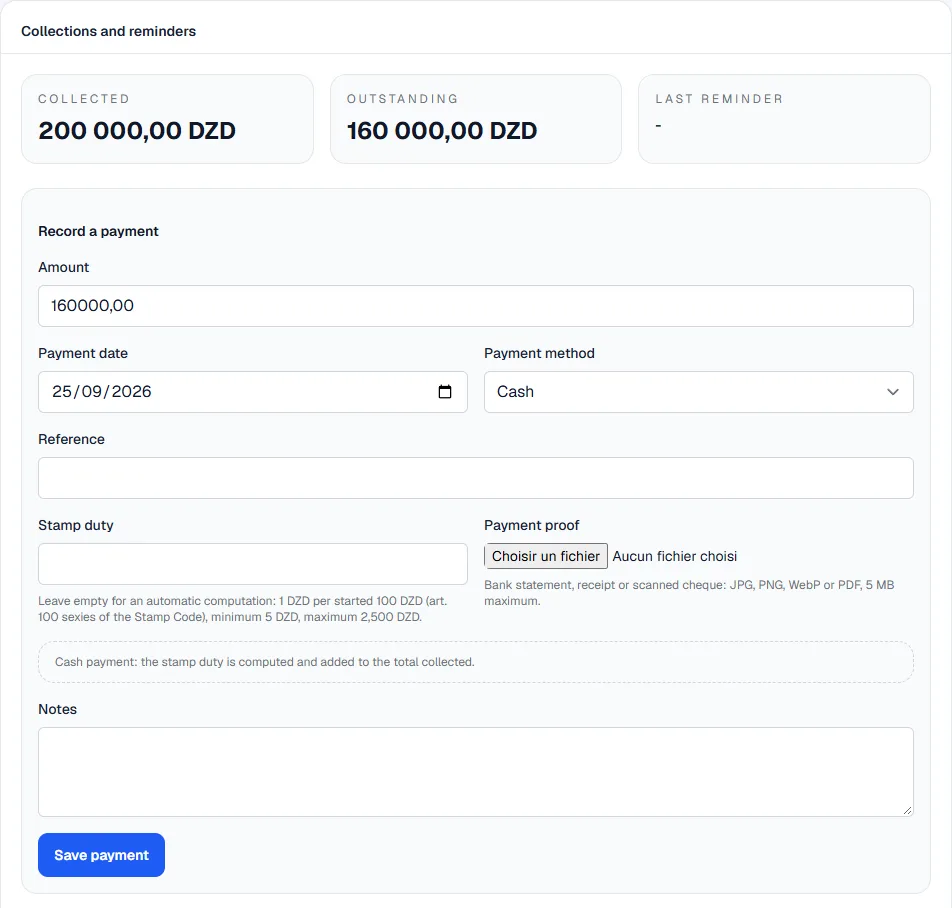
On the page of an issued invoice, the "Record a payment" block is an always-visible form shared by all methods: amount, payment date, method, reference, bank and cheque number depending on the method, stamp duty for cash, supporting document and notes. It is confirmed with the "Save payment" button. Depending on the method chosen, some fields become mandatory.
| Method | What to enter | Stamp duty |
|---|---|---|
| Cash | Date handed over, amount; optional reference (receipt number) | Yes, calculated automatically, adjustable |
| Bank transfer | Date received on the account, amount, bank; transfer label or reference optional | No |
| Cheque | Date, amount, bank and cheque number | No |
| Card | Date, amount, ticket reference | No |
| Other | Date, amount; specify the means used in the reference | No |
An online payment has no dedicated method: choose "Card" or "Other" and write the transaction ID in the reference.
A CCP deposit has no dedicated line: choose "Bank transfer" or "Other" and write "CCP deposit" in the reference. Stamp duty does not apply to it, as with any payment that is not made in cash. Choose the right method before confirming: a recorded payment can no longer be edited, and only the "Cash" method triggers the stamp duty calculation.
Recording a payment step by step
- Open "Invoices", then the invoice the client has paid. It must be issued: a draft or a cancelled invoice cannot receive a payment.
- Scroll down to the "Record a payment" block.
- Enter the actual date of receipt: the day the cash was handed to you, the transfer arrived on your account or the cheque was given to you. This date is what places the amount in the right month of your collected revenue.
- Enter the amount received. It cannot exceed what remains due on the invoice: the form refuses any overpayment.
- Select the payment method. For a bank transfer, fill in the bank; for a cheque, the bank and the number: they will help you find the payment if the cheque bounces.
- Add a reference: receipt number, transfer label, transaction ID.
- Attach a supporting document (image or PDF): signed receipt, screenshot of the transfer, photo of the cheque. It stays private: it is not attached to the PDF sent to the client.
- If the method is "Cash", check the suggested stamp duty line. Adjust it only if you have a specific reason to do so.
- Click "Save payment". As soon as the balance is reached, the invoice moves to the "paid" status.
Which supporting document to attach
- Cash: a dated and signed receipt, given to the client, of which you keep a copy. It is often the only trace of a cash payment.
- Bank transfer: the screenshot or statement showing the date and label of the transaction.
- Cheque: a photo of the front before depositing it at the bank, then the deposit slip if you have it.
- Card or online payment: the ticket or confirmation e-mail.
Name the file with the invoice number, for example FAC-2026-0012-virement.pdf: you will find it faster, including outside the application.
Partial payment, balance and "Mark as paid"
A client may pay in several instalments. Each instalment is recorded as a separate payment, with its date, method and supporting document. The invoice adds up the payments and shows what remains due; it only becomes "paid" once the balance is reached. Each instalment nevertheless counts toward collected revenue from its own date, without waiting for the last one.
The "Mark as paid" button is a shortcut: it records the entire remaining balance as a single payment, dated the day you click, with the "Other" method and the reference "Manual settlement". Keep it for simple cases, an invoice settled in one go by a single means. If the client paid in two instalments or with two different means, use "Record a payment" each time: it is the only way to keep the right method, the right date and the right stamp duty on each instalment.
Stamp duty on the cash portion
The stamp duty on cash payments (article 100 sexies of the Stamp Code) is 1 DA per 100 DA bracket or fraction of a bracket, with a minimum of 5 DA and a maximum of 2,500 DA. The maximum is reached from 250,000 DA paid in cash. It applies neither to bank transfers, nor to cheques, nor to CCP deposits, nor to electronic payments, and is calculated only on the portion paid in cash.
MyHissab applies this rule to the amount of the payment entered as cash, prints the stamp duty on a separate line of the PDF and adds it to the total collected. The suggested amount can still be changed. The details of the rule and further examples are in the guide on stamp duty.
Worked example
Amine Kaci, a developer in Algiers (card 16-00123-24), issued invoice FAC-2026-0012 for 120,000.00 DZD to Hydra Services SARL, due on 31 March.
| Date | Method | Amount | Stamp duty | Remaining due |
|---|---|---|---|---|
| 5 March | Bank transfer | 40,000.00 DZD | — | 80,000.00 DZD |
| 20 March | Cash | 80,000.00 DZD | 800 DA | 0.00 DZD |
The second payment moves the invoice to "paid". The 800 DA stamp duty (80,000 / 100 = 800 brackets) applies only to the cash portion; it appears separately and is added to the total collected that day: Amine received 80,800 DZD in cash. March's collected revenue records the invoice amount, i.e. 120,000 DZD, and the estimated IFU rises by 600 DZD (0.5%). Had Amine used "Mark as paid" on 20 March, the 80,000 DZD would have been recorded in one block under the "Other" method, without distinguishing the actual method or the stamp duty: that is why the shortcut is kept for simple settlements.
Reminders and due date
An issued and unsettled invoice can be chased from its page. Two options:
- the e-mail reminder, sent to the client from the application, with the invoice number, the remaining amount and the due date;
- the manual reminder, to keep a record of a phone call or a visit to the client without sending anything.
Each reminder is kept in the invoice history, and the due date can be updated on that occasion if you grant an extension. A fully settled invoice can no longer be chased. A simple rhythm works well: a courteous reminder on the due date, a second one or two weeks later, then a phone call. The guide on unpaid invoices details the steps to follow.
What collected payments feed into
The auto-entrepreneur status rests on revenue, not on profit. Two figures must be kept side by side: the invoiced amount, the reference for the annual cap (5,000,000 DZD for services, 10,000,000 DZD for micro-import), and the collected amount, the money actually received, the practical basis of the flat tax (IFU) at 0.5%. The first builds itself as you issue your invoices; the second only exists if you record payments.
Each recorded payment updates, on the dashboard:
- the year's collected revenue, month by month;
- the estimated IFU at 0.5% of that collected amount;
- the cap gauge on collected revenue, with the invoiced amount and its percentage of the cap shown below it; the alert at 80% and again at 100% is triggered by the higher of the two;
- the real margin, collected revenue minus the year's expenses, as soon as expenses are entered (otherwise "Unavailable").
As long as no payment has been entered, the dashboard shows "no payments received" rather than a misleading zero. At year end, the annual PDF summary lists collected revenue by month and the corresponding IFU to prepare the tax return; the declaration and payment procedures are set by the DGI. The annual PDF summary is the output that lists collected payments month by month; the dashboard CSV export and the ZIP backup only contain the amount paid on each invoice.
Two special situations
One cheque settling two invoices
Sara Benali, a designer in Oran, receives from Mrs Lina Haddad a cheque for 350,000 DZD covering two invoices: FAC-2026-0031 for 200,000 DZD and FAC-2026-0034 for 150,000 DZD. A single payment of 350,000 DZD on the first invoice would be refused: the amount would exceed what remains due.
The right method is to record two payments, one on each invoice, with the same "Cheque" method, the same bank, the same cheque number, the same date and the same photo of the cheque as supporting document. The shared number makes it possible to find both payments if the cheque is rejected or if the client asks for a reconciliation.
A credit note after payment
An issued invoice cannot be edited; it is corrected with a credit note. If the invoice is already paid and a credit note follows, the client has paid more than they finally owe: MyHissab flags this overpayment on the dashboard, with the amount to refund. The credit note is deducted from collected revenue and from the estimated IFU of the month in which it is issued.
On invoice FAC-2026-0012 paid 120,000 DZD, a credit note of 20,000 DZD creates an overpayment of 20,000 DZD. It is up to you to agree with the client on a refund or a deduction from a future invoice, and to keep a record of the agreement. The guide on credit notes details cancellation and correction cases.
Common mistakes
- Dating the payment on the day it is entered. A transfer received on 28 April and entered on 3 May must bear the date of 28 April, otherwise it slips into the following month of your collected revenue.
- Entering a cheque as "Other". Without the bank and the number, the payment cannot be found if the cheque is rejected.
- Recording cash as "Bank transfer" to avoid the stamp duty. Stamp duty depends on the actual means of settlement; the supporting document must match what is entered.
- Using "Mark as paid" on a mixed settlement. The shortcut only knows a balance, recorded under the "Other" method on the current date; a settlement by transfer plus cash is entered as two payments.
- Trying to cancel an invoice that has received a payment. Cancellation is only possible on a draft or an issued invoice with no payment; after a payment, use a credit note.
- Forgetting the supporting document. A payment without proof is hard to defend in a dispute, especially in cash.
- Reusing one invoice's balance to pay another. Each payment is attached to a single invoice; an overpayment is handled with a credit note and a refund, not a transfer.
Frequently asked questions
Can I edit a payment after recording it? Check the date, amount and method before confirming: the payment commits the invoice balance and the collected revenue. In case of error, contact the team from the Contact page before doing anything else.
Does the stamp duty count toward my revenue? Collected revenue records the amount of the payment recorded on the invoice; the stamp duty is a tax tied to the means of settlement, shown on a separate line and added to the total collected. For its tax treatment, the DGI remains the only reliable source.
Is a deposit invoiced before the service recorded the same way? Yes. An invoiced deposit enters revenue on its date; record its payment like any other receipt, then the balance on delivery. The tutorial on the first invoice shows how to create the invoice that comes before.
This information is provided for practical purposes and reflects the texts in force on the update date. It does not replace advice from the ANAE, the tax administration or a professional. Always check the latest version of the official texts.
From theory to your first invoice.
MyHissab applies these rules automatically: legal mention, amount in words, revenue caps. Free, no credit card.