
Guides
Securing your MyHissab account with two-factor authentication and a strong password
Enable two-factor authentication step by step, choose a strong password, keep your backup codes offline, and learn to recognise a phishing email.
By the MyHissab team 10 min read
A MyHissab account holds your invoices, your clients, your payments received and your supporting documents: enough to reconstruct a whole year of activity. This guide explains how to protect it, from choosing a password to enabling two-factor authentication, and what is left to do if your phone goes missing. By the end, your account withstands a guessed or stolen password, and you know how to recover your data whatever happens.
Why an invoicing account deserves protection
Take Amine Kaci, a developer in Algiers. His account holds 38 invoices issued since January, that is 1,460,000 DZD of invoiced revenue, some twenty client records with their NIFs, the scans of his payment receipts and his annual summary. Anyone who gets into this account can read all of it, download the PDFs, write to his clients or simply delete data.
The risk is not theoretical. Most break-ins do not come from a technical flaw, but from a password reused on another site that leaked, or from a fake email asking you to "confirm" your credentials. Protection comes in several layers, each independent of the others.
| Risk | Protection |
|---|---|
| Password guessed or found in another site's leak | Long password (12 characters minimum) used only for MyHissab; the application rejects passwords found in known data breaches |
| Password stolen through phishing | Two-factor authentication: without the code from your phone, the password is not enough |
| Phone lost or replaced | Backup codes kept offline |
| Session left open on a shared computer | Password change: the other devices are signed out |
| Email or 2FA changed from an open session | Password requested again to enable or disable 2FA, regenerate the backup codes and change the email address |
| Loss, deletion or handling error | Regular backup downloaded and kept elsewhere |
A long, unique password and a verified email
The password
MyHissab requires at least 12 characters and rejects passwords found in known data breaches. That is a minimum, not a target: the longer the password, the better it holds up. The simplest method is to string together four or five unrelated words, separated by a digit or a symbol. A twenty-character phrase is easier to remember than a string of eight symbols, and it is far stronger.
Two rules matter more than anything else:
- Unique. The password for your invoicing account must not be used anywhere else. If another site leaks, your account is not affected.
- Never shared. Not with a partner, not with an accountant, not by message. If someone needs to see your invoices, the client area or an exported backup covers the need without giving access to your account.
A password manager (the one in your browser or a dedicated app) generates and remembers these passwords for you. It is the most comfortable way to keep the rule "one password per site".
The verified email
At sign-up, an email address and a password are enough, but the address must be verified by clicking the link you receive before the account can be used. This step is not a formality: this is the address that will receive password reset links. Choose an address you control for the long term, itself protected by a unique password and, if your email provider offers it, by two-factor authentication. A poorly protected mailbox cancels out every effort made on the account itself.
Enabling two-factor authentication
Two-factor authentication (2FA) adds a second proof at sign-in: a 6-digit code generated by an app on your phone, renewed constantly. A stolen password is no longer enough. MyHissab uses the TOTP standard, supported by any TOTP-compatible authenticator app; no specific app is imposed.
Allow three minutes, phone in hand:
- Install, if you have not already, a TOTP-compatible authenticator app on your phone.
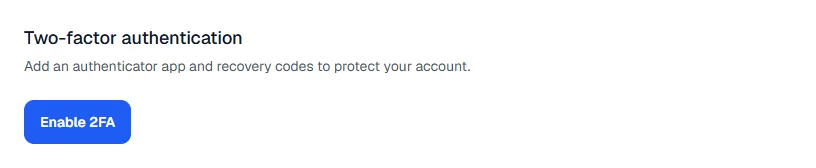
- In MyHissab, open Profile, then the Two-factor authentication section, and start the activation: your password is requested again.
- A QR code appears on screen, together with eight backup codes. Copy these codes right away, before going any further. Then, in the authenticator app, choose to add an account and scan the QR code. A new entry appears, with a 6-digit code.
- Enter this code in MyHissab to confirm that the pairing works. Until this confirmation is done, 2FA is not active; as soon as it is, the backup codes disappear from the screen.
- The backup codes are therefore displayed once only. Print them or write them down on paper, and store them offline, for example with your auto-entrepreneur card documents. Do not photograph them with the phone used for authentication. If you did not copy them, Regenerate backup codes (password requested again) displays new ones, again once only.
- Finish, then sign out and sign back in once to check that everything works while you are still at your screen.
Signing in afterwards
Sign-in happens in two steps: email and password, then the 6-digit code read from the authenticator app. The code changes regularly; if the one you entered is refused, wait for the next one and check that your phone's time is set automatically, because the code calculation depends on the time.
Phone lost, broken or replaced
This is where the backup codes come in. Instead of the 6-digit code, enter one of the backup codes kept offline. Once signed in, go to Profile to disable two-factor authentication (your password will be requested again), then re-enable it from the new phone: a new QR code and new backup codes are generated, and the old codes no longer work.
Without backup codes and without a phone, you can no longer sign in on your own; all that remains is to contact the team through the Contact page, with no guarantee of recovery. That is the whole point of step 5.
What the application does for you
Three protections apply without any setting, and the client area has its own rules.
The password requested again for sensitive operations
Disabling two-factor authentication or changing the account's email address are the operations an intruder would try first from a session left open. MyHissab asks for the password again to enable or disable two-factor authentication, regenerate the backup codes and change the email address. A session forgotten on a cybercafé computer therefore does not allow someone to take control of the account.
Changing the password signs out the other devices
Forgot to sign out of a computer that is not yours? Change your password from your own device: all other sessions are closed. That is the reflex to have at the slightest doubt, even before trying to understand what happened.
Private documents are only accessible when signed in
The scans attached to invoices and the payment receipts (image or PDF) are not public files: they are served only to a user who is authenticated and authorised on that account. A link copied into an email does not make them accessible to a third party. Conversely, the public product page opened through a QR code is meant to be shared: it shows neither price nor stock.
The client area: one access per client
The client area lets each of your clients view their invoices and PDFs, and exchange messages with you. Each client signs in with their own email and their own password, created when they register through the link or QR code you send them (valid for 30 days, can be regenerated). They only see their own documents.
Never create a "generic" client account shared between several clients, and never hand over your own credentials to "save time". How the portal works is detailed in the client area guide.
Recognising a phishing email
Phishing consists of imitating a known service to make you enter your credentials on a fake page. A few pointers, valid for MyHissab as much as for your bank or your email provider:
- No serious service asks for a password by email. A message asking you to "confirm your password", to reply with it or to enter it on an attached page is a fake, however urgent it claims to be.
- Look at the link's real address, not the displayed text. On a computer, hover over the link without clicking; on a phone, press and hold it. A domain that looks like the original (an extra letter, a hyphen, a different extension) is the classic sign.
- Beware of urgency: "account suspended within 24 hours", "unpaid invoice", "mandatory verification". Fear makes people click.
- When in doubt, do not use the link. Open the application by typing the address yourself in the browser and check from your account. If a genuine message is waiting for you, you will see it.
If you entered your password on a suspicious page, change it immediately from the application (the other sessions will be signed out), then check in Profile that the email and two-factor authentication have not been changed.
Backup, the last line of defence
No protection is absolute, and security also covers human error: a client deleted by mistake, a stolen computer, an account that has become inaccessible. The full backup, generated from Backups, produces a ZIP archive with your clients, quotes, invoices (with their PDFs), products, numbering series and a PDF summary. The archive is kept for 30 days after the request; the link received by email is valid for 12 hours, and a new link is available at any time on the Backups page during those 30 days. Download one regularly (at each month's end, for example, or after a large batch of invoices) and keep it somewhere other than your work computer: an external drive, or an online storage space also protected by a unique password.
A backup contains all your invoicing data. Treat the archive with the same care as the account itself. The archive's contents and the steps to follow are described in the backup and data export guide. And if you are just starting out, the first invoice guide is the right starting point before filling the account.
Common mistakes
- Enabling 2FA without writing down the backup codes. They are shown only once. A phone lost six months later then becomes a real problem.
- Keeping the backup codes in the phone itself. If the phone goes missing, the codes go with it. Paper, stored separately, remains the safest.
- Reusing the email account's password. That is precisely the address that receives reset links. The two must be different.
- Staying signed in on a shared computer. Sign out; if you forget, change your password, which closes the other sessions.
- Giving your credentials to a third party so they can view the invoices. An exported backup or the client area covers the need without exposing the account.
- Putting the backup off "until later". Tie it to a fixed moment, for example when preparing your tax return.
Frequently asked questions
Is two-factor authentication mandatory? No, it is optional and is enabled from Profile. It is strongly recommended as soon as the account contains real data: it makes a stolen password useless on its own. If it becomes inconvenient, it can be disabled in the same place, after entering the password.
Which authenticator app should I choose? Any TOTP-compatible app, on your usual phone. The QR code displayed by MyHissab follows this standard. Prefer an app that protects and backs up its own data, which makes moving to a new phone easier, without ever letting you skip the backup codes.
What happens if I lose both my phone and my backup codes? You will no longer be able to sign in on your own. The only remaining route is to contact the team through the Contact page, with no guarantee of recovery and no promised timeframe. To never get there: two paper copies of the backup codes, in two different places, and a recent backup which, for its part, does not depend on access to the account.
This information is provided for practical purposes and reflects the texts in force on the update date. It does not replace advice from the ANAE, the tax administration or a professional. Always check the latest version of the official texts.
From theory to your first invoice.
MyHissab applies these rules automatically: legal mention, amount in words, revenue caps. Free, no credit card.