
Guides
Managing stock, lots and expiry dates with MyHissab
Create a product, receive a lot with its expiry date, record stock in and out, get the alert before expiry, and print labels with a barcode and QR code.
By the MyHissab team 9 min read
As soon as you sell products rather than services, the same question comes back every week: how many pieces are left, which ones go out first, which ones will expire before they are sold. This guide shows how to keep a simple stock in the Inventory menu of MyHissab: create a product, receive dated lots, record stock in and out, get an alert before expiry, print labels. By the end, you will know how to read the value of your stock at purchase price and avoid the two mistakes that throw an inventory off.
What the inventory tracks
The inventory keeps three things: one record per product, dated lots attached to each product, and a journal of movements (in and out) that explains every change in quantity. At the top of the Inventory page, you read the number of products, those below their low-stock threshold, the lots close to expiry, the latest movements and the stock value at cost. A value at sale price is shown separately: it is a potential, not an accounting value.
The inventory does not replace the invoice. A sale is invoiced as usual, with its mandatory details; the stock exit is then recorded, with the invoice number as reference.
Creating a product step by step
- Open Inventory, then "New product."
- Give it a clear name, as it will appear on the label and the public page.
- Assign a SKU: a short internal reference, unique within your account (for example SAC-CUIR-NOIR).
- Enter the manufacturer's barcode if there is one; otherwise leave it blank, the label will use the SKU. A code cannot be assigned to two products.
- Fill in the purchase price (unit cost) and the sale price. The first feeds the stock valuation, the second the label and the value at sale price.
- Set the low stock threshold (field "Low stock threshold"): the quantity below which the product is flagged (for example 5 for an item sold once or twice a week).
- Leave the initial stock at zero if you are going to receive that stock as a lot in the next step. Fill in this field only for a product without lots or expiry date.
- Save. The record shows the current stock, the lots and the movement history.
For an imported item, the purchase price is not the price paid to the supplier but the full cost, duties and travel expenses included, as calculated in the guide on micro-import: cost price and selling price. An underestimated purchase price inflates the apparent margin and understates the stock value.
Lots: quantity, expiry date, alert
A lot is a delivery of goods: lot number, quantity received, received date, optional expiry date, unit cost, notes. On the product record, fill in the "Add stock lot" block and confirm with "Receive lot." Creating the lot records a stock entry by itself for the quantity received: the product's stock increases accordingly and the movement appears in the journal with the lot number. There is nothing else to enter.
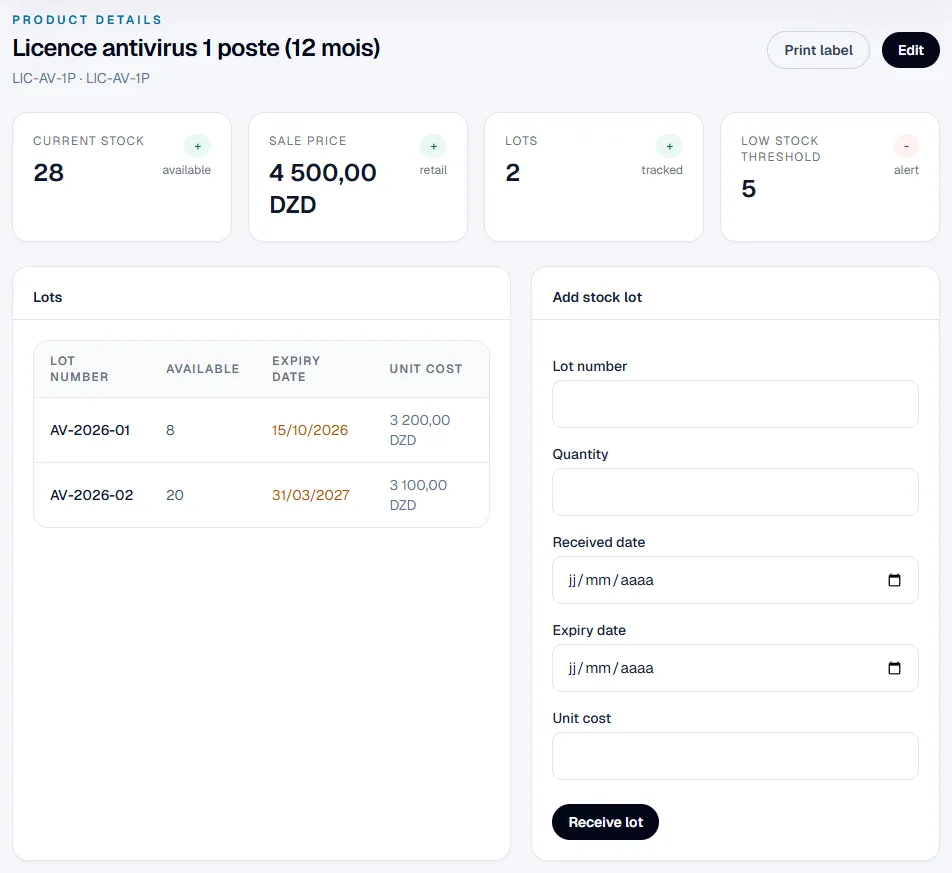
Each lot keeps two quantities: the quantity received, which no longer changes, and the quantity available, which decreases as stock goes out. A product with no expiry (a phone case, a bag) can also be tracked by undated lots, to know which trip each piece came from.
For dated lots, an email alert goes out every day at 8 a.m. when a lot reaches N days before its expiry date. The delay N is set in your profile; it is 30 days when the account is opened. The lots concerned also appear on the Inventory page and in the dashboard's to-do list. Adjust this delay to your sales pace: 30 days for a fast-moving item, 60 or 90 days for a slow product that will need promoting in time.
Stock in and out: effect on stock and lots
A movement is entered from the product record: type (in or out), quantity, optional lot, reference (invoice or trip number) and date.
| Movement | Effect on product stock | Effect on lots |
|---|---|---|
| Creating a lot of 40 pieces | + 40 | New lot, 40 available |
| Entry of 10 without a lot | + 10 | No lot changed |
| Entry of 10 on a given lot | + 10 | The chosen lot gains 10 available |
| Exit of 6 without a lot | − 6 | Taken from the lot with the nearest expiry date, then the next; undated lots come last |
| Exit of 6 on a given lot | − 6 | Only the chosen lot decreases by 6 |
| Exit greater than stock | Refused | Nothing is written |
| Exit greater than the chosen lot's available quantity | Refused | Nothing is written |
Two rules follow. First, stock never goes negative: an exit of 12 on a stock of 10 is rejected, which forces you to fix the missing entry rather than leave a wrong quantity. Second, an exit without a lot follows the order of expiry dates, first to expire first out: the right reflex for cosmetics or food products. If you physically sold a piece from a more recent lot, specify the lot.
Each movement records the stock before and after, the user and the date: a gap with the physical count can be traced movement by movement.
Example: a lot of 40 pieces expiring in 60 days
Sara Benali, a designer in Oran, also resells handmade creams. On 16 October she receives 40 jars bought at 1,200 DZD each, to be sold at 2,000 DZD, with a use-by date of 15 December, 60 days later. Her alert delay is still 30 days.
- She creates the product CREME-KARITE-50: purchase price 1,200 DZD, sale price 2,000 DZD, low-stock threshold 5, initial stock 0.
- She creates lot L-2026-10: 40 pieces, expiring 15 December. Stock goes to 40, valued at 48,000 DZD at cost (40 × 1,200) and 80,000 DZD at sale price.
- As she sells, she records the exits with each invoice number. By the end of October, 14 jars are out: stock 26, value at cost 31,200 DZD.
- On 15 November at 8 a.m., 30 days before the deadline, she receives the alert email for lot L-2026-10: 26 jars to sell within a month. She decides on a discount on those 26 jars rather than throwing half of them away in December.
- On 20 November she receives a second lot of 40 jars, expiring 31 January. The following sales, recorded without a lot, keep drawing from the first lot until it is empty, then from the second.
- On 10 December, the first lot is empty and the second shows 36 available; stock is 36.
The revenue from these sales is read on the dashboard; the stock, for its part, tells how many dinars are still sitting in the cupboard and until when.
Labels, public page and micro-import
From the product record, "Label" opens a printable page with the name, the SKU, the sale price, a barcode (Code 128 standard) and a QR code. The barcode uses the manufacturer's code if entered, otherwise the SKU; it can be read with any scanner, which speeds up physical counting. The QR code leads to a public product page: name, reference and lots with their expiry date, but no price and no stock quantity. A customer can check how fresh an item is without learning anything about your margin.
For micro-import, the two modules complement each other. The Micro-import menu tracks each trip (currency, rate, duties, expenses, gain per item) and monitors the 1,800,000 DZD cap per trip and the two trips per month. The inventory tracks the physical pieces: one lot per trip, with the trip number (VOY-2026-0007) as reference, tells which item came from which trip and at what cost. There is no automatic transfer between a trip item and a lot: the delivery is entered in the inventory once the goods have cleared customs, with the trip's cost price as the lot's unit cost.
Common mistakes
- Entering an initial stock and then creating the lot. The product is created with 40 as initial stock, then a lot of 40 is added: stock shows 80. Choose one path only: initial stock for a product without lots, a lot for everything else. If the mistake is made, record an exit of 40 without a lot with the note "initial stock duplicate correction."
- Recording an entry on top of the lot. The lot already counts as an entry. A manual entry is only for a top-up (customer return, pieces found again) or for a product managed without lots.
- Skipping the lot and entering only stock entries. The stock is right, but no expiry date is known: no alert, no exit order by expiry.
- Recording exits at the end of the month. In the meantime, the displayed stock is wrong, and a grouped exit may be refused if entries were forgotten.
- Leaving the low-stock threshold at zero. The product will only be flagged once it is sold out, too late to reorder.
Frequently asked questions
Does an invoice issued in MyHissab automatically remove the pieces from stock? No. The invoice and the stock are two separate registers: after issuing the invoice, record an exit on the product with the invoice number as reference. This also covers cases where delivery happens in several stages.
What happens when a lot has expired but is still in stock? Nothing is removed automatically: the application alerts, you decide. If the pieces are unsellable, record an exit on that lot with the note "expired"; the stock value at cost decreases accordingly and the journal explains why.
Can I use the manufacturer's barcode on the label? Yes: if the barcode field is filled in, the label uses it, which allows scanning the original packaging. The same code cannot be assigned to two products in the account. Without a manufacturer code, the label carries the SKU.
This information is provided for practical purposes and reflects the texts in force on the update date. It does not replace advice from the ANAE, the tax administration or a professional. Always check the latest version of the official texts.
From theory to your first invoice.
MyHissab applies these rules automatically: legal mention, amount in words, revenue caps. Free, no credit card.