
Guides
Quote, purchase order, delivery note, invoice: the full chain in MyHissab
Step by step: create a quote, chain a purchase order and a delivery note, convert it to an invoice in one click, apply a discount, collect the deposit then the balance.
By the MyHissab team 9 min read
This tutorial follows one job from start to finish in MyHissab: quote, client approval, purchase order, delivery note, invoice, deposit and balance. By the end, you will know which document is created from which, what can still be changed at each step, and where to find the whole set from the invoice. The running example is Amine Kaci, a developer in Algiers, building a showcase website for 120,000 DZD with a 30% deposit.
1. Create the quote and get the client's approval
Open "Quotes," then "New quote."
- Client: pick one from the list. If they don't exist yet, create them first in "Clients" (name and address are enough; RC, NIF, NIS and AI are optional).
- Dates: today's date is suggested as the issue date; fill in "Valid until." Thirty days is common practice, not a rule.
- Lines: "Add a line" for each service, with the description, quantity, unit price in dinars and, if needed, a line discount in percent. The description can be duplicated in Arabic and English: those labels are carried over to the invoice, whose PDF exists in those languages (the quote PDF is in French). Line amounts and the total are calculated for you.
- Notes and terms: the terms hold the deposit requested, the lead time and the payment conditions, for example "30% deposit on order, balance when the site goes live."
- Create a quote. The quote receives the next number in your quote series (DEV- followed by the year by default, adjustable under Settings → Document numbering).
From the quote page, "Download PDF" produces the document with your auto-entrepreneur identity, the statement "VAT not applicable — auto-entrepreneur regime, flat-rate final tax (law no. 22-23)," the validity date and the amount in words. Send this PDF to the client through your usual channel.
The client's approval
Approval happens outside the app: the quote returned signed "Approved," or a written confirmation kept with the file. As long as the quote is not converted, it can still be changed with "Edit" and can be deleted: if the client negotiates a line, correct the quote and resend the PDF rather than fixing the invoice later (the quote guide).
2. Purchase order and delivery note
Both are optional; they mainly serve business clients, product deliveries and jobs delivered in several stages (when to use them).
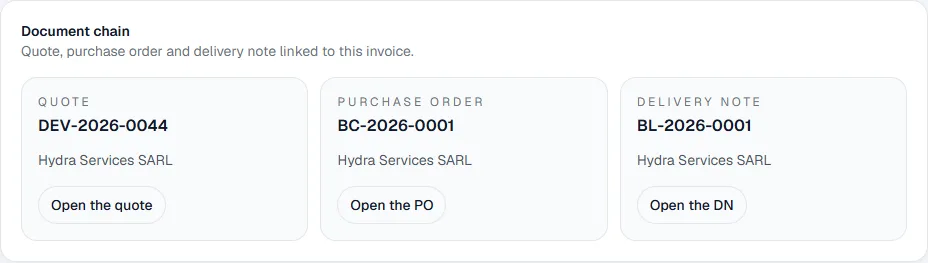
- Purchase order: on the quote page, the "Document chain" block offers "Create a PO." The form opens pre-filled with the client and the quote lines ("From quote DEV-…"); check, then save. It takes a number in its own series (BC- by default) and can also be created from an invoice.
- Delivery note: from the purchase order page ("Create DN") or from the invoice page ("Create a DN"). Client and lines are carried over; adjust quantities for a partial delivery. Own series, BL- by default.
Neither counts as revenue: only the invoice does.
3. Convert the quote to an invoice and apply a discount
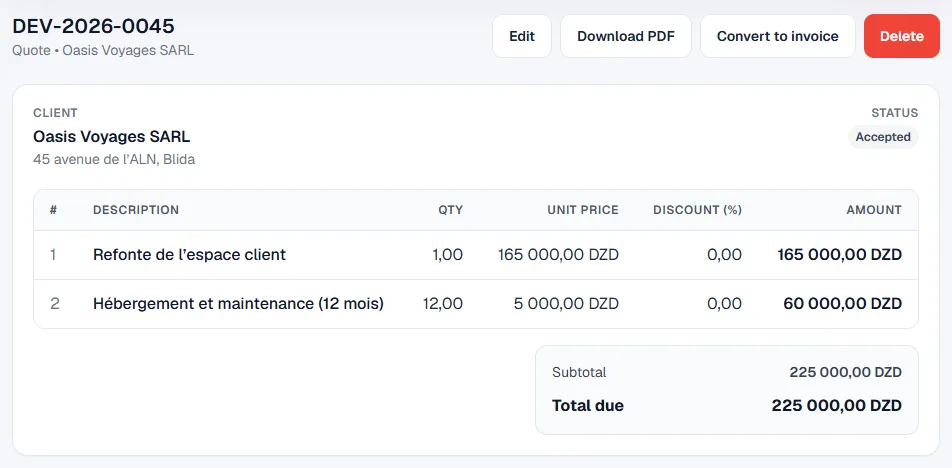
When the work is delivered, or as soon as the client approves if the deposit is collected on the main invoice, open the quote and choose "Convert to invoice." In one click:
- an invoice is created as a draft, with the next number in your invoice series (FAC- by default);
- the client, lines, line discounts and notes are carried over without re-entry; the invoice page shows "Source: DEV-…";
- the quote's validity date is suggested as the due date: adjust it;
- the quote moves to "Converted to invoice": it can no longer be edited or deleted, and the "Convert to invoice" button gives way to "View invoice."
While the invoice is a draft, "Edit" opens the form and the number is kept: correcting a draft doesn't use up a new one. This is when you add the agreed commercial discount: type "Amount (DZD)" or "Percentage (%)," then the value. For example, 5% on 120,000 DZD gives a 6,000 DZD discount and 114,000 DZD payable; 5,000 DZD as an amount gives 115,000 DZD. It appears on its own line, between the subtotal and the total payable.
Review the preview, then "Mark as sent." The invoice is issued: it can no longer be changed. Download the PDF (French, Arabic or English) and send it. The points to check before sending are listed in the first-invoice tutorial.
4. Collect the deposit, then the balance
A draft cannot receive a payment: the invoice must be marked "Sent." Then, on its page, "Record a payment":
- Amount: the deposit, 36,000 DZD for 30% of 120,000 DZD. A partial payment is accepted; an amount above the remaining balance is refused.
- Payment date and method: cash, bank transfer (with the bank), cheque (with bank and number), card or other. For cash, stamp duty is calculated automatically, stays adjustable and appears on the PDF.
- Reference and proof (image or PDF, private), then "Confirm payment."
The invoice shows "Collected" and "Remaining," and its payment status becomes "Partially paid." On delivery, record the balance the same way, 84,000 DZD: the status becomes "Settled" and the invoice "Paid." The "Mark as paid" shortcut records the whole remaining balance at once, dated today, with method "Other." Methods and proofs are described in the payment recording guide.
On the numbers: the 120,000 DZD enter invoiced revenue on the invoice date; the 36,000 then 84,000 DZD enter collected revenue on their own dates. Collected revenue feeds the dashboard's IFU estimate, 600 DZD at 0.5% for this job.
5. What can still be changed, and where to find linked documents
| Document | Created from | Number | Editable? |
|---|---|---|---|
| Quote | "Quotes" → "New quote," or the client record | DEV- series | Yes, until converted; locked afterwards |
| Purchase order | The quote page ("Create a PO") or the invoice page | BC- series | Working document: check it before printing |
| Delivery note | The purchase order page ("Create DN") or the invoice page ("Create a DN") | BL- series | Same; the copy signed by the client is the one that counts |
| Draft invoice | "Convert to invoice," or "Invoices" → "New invoice" | FAC- series, assigned at draft stage | Yes, without using up a number |
| Issued invoice | "Mark as sent" | Unchanged | No: credit note or cancellation |
| Paid invoice | Payment recorded | Unchanged | No: credit note only |
Two nuances on the issued invoice. "Back to draft" remains possible as long as no payment or credit note is attached. "Cancel" remains possible without a payment. Once money has been collected, the only correction is the credit note, capped at the amount still creditable (the credit note guide).
To find everything, the invoice page shows the "Document chain" block: the original quote ("Open the quote"), the purchase order and the delivery note, or the buttons to create them. The client record shows the number of quotes and invoices; the "Linked documents" block is not populated yet. Go through the invoice page ("Document chain" block) to find the chain.
6. Full example: a 120,000 DZD showcase website, 30% deposit
Hydra Services SARL orders a five-page showcase website (90,000 DZD) plus hosting and domain name for one year (30,000 DZD) from Amine Kaci.
| Date | Step | Document or action | Amount |
|---|---|---|---|
| 12/08/2026 | Quote sent | DEV-2026-0031, valid until 11/09/2026; 30% deposit on order, balance when the site goes live | 120,000.00 DZD |
| 18/08/2026 | Approval | PDF returned signed "Approved," filed with the job | — |
| 18/08/2026 | Purchase order | BC-2026-0009 created from the quote, signed by the client | 120,000.00 DZD |
| 18/08/2026 | Conversion | "Convert to invoice" → FAC-2026-0024 as a draft, reviewed, then "Mark as sent" | 120,000.00 DZD |
| 21/08/2026 | Deposit | "Record a payment," bank transfer, transfer reference | 36,000.00 DZD |
| 15/09/2026 | Go-live | BL-2026-0018 created from the invoice, signed by Mrs Lina Haddad | — |
| 25/09/2026 | Balance | "Record a payment," cheque with bank and number: invoice "Paid," "Settled" | 84,000.00 DZD |
Had the deposit been paid in cash, a stamp duty of 540 DA (360 brackets of 100 DA at 1.5 DA, since the deposit exceeds 30,000 DA) would have been added to the total collected, on a separate line.
Common mistakes
- Converting the quote before approval. The invoice uses up a number in the FAC- series and the quote is locked. If the client backs out, the draft will have to be cancelled or deleted; the number stays used up. Wait for written approval.
- Invoicing a price different from the quote. If the work has changed, correct the unconverted quote and get it approved again. The global discount is for an agreed commercial gesture, not for patching a wrong quote.
- "Mark as paid" when only the deposit has arrived. The shortcut records the whole remaining balance dated today; collected revenue and the estimated IFU are distorted. For a deposit, use "Record a payment" with the real amount.
- Counting the purchase order or delivery note as a sale. They create neither invoiced nor collected revenue; only the invoice does, on its date.
Frequently asked questions
Can I create the delivery note directly from the quote? No. The delivery note is created from the purchase order or from the invoice, because it records what was handed over after approval. Without a purchase order, convert the quote to an invoice (it stays a draft until you issue it), then create the delivery note from the invoice page.
The client requires a separate deposit invoice: how do I do that? The flow described here collects the deposit as a partial payment on a single invoice. A separate deposit invoice is a full invoice in its own right: it enters revenue on its date, and the final invoice must mention the deposit already invoiced so the same amount is not counted twice. In that case, do not convert the quote: create both invoices from "New invoice," citing its number in the notes.
What happens to the quote if the invoice is cancelled? It stays "Converted to invoice," linked to that invoice, and does not become editable again. To invoice again, create a new invoice, or a new quote if the terms have changed. The cancelled invoice's number stays in the series: never reuse it.
This information is provided for practical purposes and reflects the texts in force on the update date. It does not replace advice from the ANAE, the tax administration or a professional. Always check the latest version of the official texts.
From theory to your first invoice.
MyHissab applies these rules automatically: legal mention, amount in words, revenue caps. Free, no credit card.