
Guides
Backing up and exporting your MyHissab data: ZIP archive, CSV and PDF
Run a full or per-client backup, understand what the ZIP archive contains, complete it with the CSV export and the annual summary, and keep an offline copy.
By the MyHissab team 8 min read
Your invoices, your clients and your history are only worth something if you can get them back on the day you need them: a replaced computer, lost access, a change of tool, or simply a client asking for their file. This guide shows how to run a backup from the Backups menu, what the resulting ZIP archive contains, how to complete it with the CSV export and the annual summary, and what it does not replace. By the end, you will have an offline copy of your data and a routine to keep it current.
Your data remains yours
MyHissab hosts your documents, but nothing forces you to keep a single online copy. A backup you hold yourself depends on no password, no subscription and no email address you might lose access to. That is portability: your data can be read with a text editor or a spreadsheet, shown to an accountant, taken into another tool or kept after the business closes. Backups are open to every account, with no bank card.
Running a backup step by step
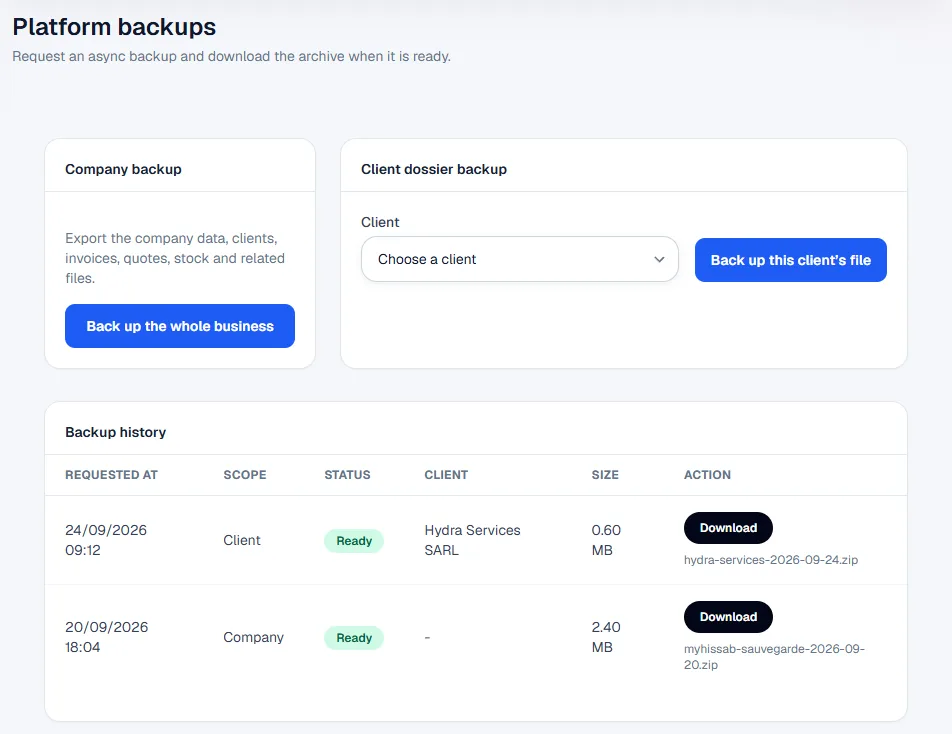
- Open the Backups menu. The page offers two requests: "Back up the whole company" and "Back up this client's file".
- Choose the scope. The full backup covers the entire account. The per-client backup is limited to the quotes, invoices and exchanges of a single client, chosen from the list.
- Confirm the request. A message confirms it and a line appears in the history with the status "Pending".
- Let it generate in the background. The status moves to "Processing" then "Ready" without reloading the page; you can keep working.
- Collect the archive. A "Download" button appears on the history line, and an email "Your ZIP backup is ready" carries the same button. The link is signed: it belongs to your archive and must not be passed on.
- File it away. The archive is named
backup-<company>-company-<date>_<time>.zip(or-client-<number>-for a client file). Do not leave it in the Downloads folder. - If the status shows "Failed", request it again. If it fails repeatedly, write to the team from the Contact page with the date and time of the request.
The email states an expiry date, thirty days after the request. Do not rely on the platform to keep the archive beyond that: the whole point is for it to be with you.
What the archive contains
The ZIP opens with the tools built into Windows, macOS or Android. The data/*.json files are plain text: each record is listed with the name and value of every field, with no special software required.
| File in the archive | Content | Use |
|---|---|---|
manifest.json |
Scope (company or client), company name, client concerned, requester, request, generation and expiry dates | Identify the archive without opening all of it |
data/company.json, data/users.json |
Company record; users (name, email, role) without passwords or two-factor secrets | Rebuild the issuer profile |
data/clients.json |
Client records with RC, NIF, NIS, AI, contact details and notes | Reuse in another tool, CSV import |
data/quotes.json, data/quote_lines.json |
Quotes and their lines | Find an accepted offer |
data/invoices.json, data/invoice_lines.json |
Invoices, lines, status, amount paid, payment date, due date | Prove turnover, CSV import |
data/invoice_interactions.json, files/interactions/ |
Messages and attachments exchanged with a client on an invoice | Evidence of an exchange |
data/products.json, data/product_lots.json, data/stock_movements.json |
Products, lots with expiry dates, stock in and out movements (full backup only) | Inventory at a given date |
data/number_series.json, data/billing_settings.json |
Numbering series (prefix, next number, format) and billing settings (full backup only) | Resume numbering with no gap or duplicate |
files/backup-summary.pdf |
Readable summary: number of clients, quotes, invoices and products, then the invoice list with number, status and total | Quick reading with no tool |
files/invoices/, files/quotes/ |
PDFs of invoices and quotes already produced by the application, named by their number (FAC-2026-0012.pdf) |
Present the document as issued |
files/company-logo.* |
Your logo | Recreate your documents elsewhere |
Two points to note. The archive includes the PDFs the application has already generated; to be sure you have all of them, download each document's PDF from its page as you go. And the archive summary is not the dashboard's annual summary: the first describes the ZIP contents, the second prepares the tax return.
What is not in it
The archive focuses on clients, quotes, invoices and inventory. As of today, it does not contain expenses, nor the detail of each payment (method, reference, proof: the invoice only carries the amount paid and the date), nor credit notes, purchase orders, delivery notes, warranties and support tickets. For those, download the PDFs from each document and keep your own supporting documents.
Completing the backup: CSV, annual summary, PDFs
The backup gives you raw data. Three other exports serve different needs.
- The dashboard CSV export produces a
dashboard-report-YYYY-MM-DD.csvfile that opens directly in a spreadsheet, accents included, with the semicolon as separator. It lists the year's indicators (cash received, estimated IFU, expenses, real margin) and the latest invoices with number, client, status and total: this is the file to send to an accountant. The indicators are explained in Reading the dashboard. - The annual summary PDF shows cash received month by month and the corresponding IFU, for the year of your choice. Keep it with the year-end backup, as described in Closing the year.
- Each document's PDF (invoice, quote, credit note) downloads one by one from its page, in French, Arabic or English. A numbered PDF remains the document you will be asked to show.
Example: Amine Kaci, a developer in Algiers, ends the year with 48 invoices issued for 4,100,000 DZD invoiced and 3,900,000 DZD received. On 31 December he downloads the full backup, the CSV export and the annual summary, which shows an estimated IFU of 19,500 DZD (3,900,000 × 0.5%). He files the three in a "2026" folder and checks that files/invoices/ does contain 48 PDFs.
Where to keep the archive and how often
A backup that stays on the computer that breaks down protects nothing. Apply the two-media rule: one copy on your computer, a second on a separate medium, USB key, external drive or online storage from another provider. Name the folders by date.
The archive contains your clients' NIF numbers, addresses and emails. Treat it as confidential: no sending by instant messaging, no sharing of the link, no lent media.
Recommended routine:
- Every month, once the month's payments and expenses are recorded, run a full backup and copy it to the second medium, right after the dashboard routine.
- Before every major operation: year-end closing, change of numbering format, large CSV import, change of email or password, enabling or disabling two-factor authentication, migration to another tool, ending the activity.
- After the operation, a second backup freezes the new state.
- Once a year, open an old archive and check that you can still read it.
What the backup does not replace
- An automatic restore. There is no "restore from ZIP" button. Re-importing goes through the CSV import in Settings → Import data, which accepts clients, expenses and invoices, with preview, column mapping and an all-or-nothing rule. The JSON files therefore need converting to CSV following the downloadable template for each type; invoices dated before the account was opened keep their original number if it is unique. The method is in Importing your history.
- Account security. An archive protects your data, not your access. Two-factor authentication and recovery codes are covered in Securing your account.
- The IFU return. The annual summary prepares it; its procedure and calendar are set by the DGI.
- The issued PDFs. The numbered invoice as handed to the client remains the reference document; the JSON data complements it.
Common mistakes
- Expecting the platform to keep everything. The link has an expiry date; download as soon as the status reads "Ready".
- Leaving the ZIP in the Downloads folder. It will be lost with the disk or wiped during a clean-up.
- Sharing the link or the archive. The link is personal and the archive holds your clients' tax identifiers.
- Mixing up the two scopes. The client file contains neither the inventory, nor the numbering series, nor the settings.
- Assuming expenses are included. They are not: keep your supporting documents and export the dashboard to CSV.
- Never opening the archive. A backup never checked is only a hope. Open
files/backup-summary.pdfat least once.
Frequently asked questions
How long does the archive stay available for download? The email states an expiry date, thirty days after the request, and the history on the Backups page lists your past requests. The right reflex is to download the archive as soon as it is ready and copy it to a second medium, without relying on that period.
Can I restore my account from the ZIP? Not automatically. Clients, expenses and invoices can be re-imported through the CSV import, after converting the JSON files to the format of the downloadable template. The rest (inventory, settings, numbering series) is re-entered by hand from the archive files.
What is the per-client backup for? To hand a client, or their accountant, all of their quotes, invoices, exchanges and attachments in a single archive, or to freeze a file at the time of a dispute. It is lighter than a full backup, but does not replace it.
This information is provided for practical purposes and reflects the texts in force on the update date. It does not replace advice from the ANAE, the tax administration or a professional. Always check the latest version of the official texts.
From theory to your first invoice.
MyHissab applies these rules automatically: legal mention, amount in words, revenue caps. Free, no credit card.